


Comparing Results
It is a common desire to run the same scan twice at different times, or run two slightly different scans at the same time, and see how they differ. Zenmap provides an interface for comparing scan results, shown in Figure 12.16. Open the comparison tool by selecting “Compare Results” from the “Tools” menu or by using the ctrl+D (think “diff”) keyboard shortcut. Zenmap supports comparing two scan results at a time.
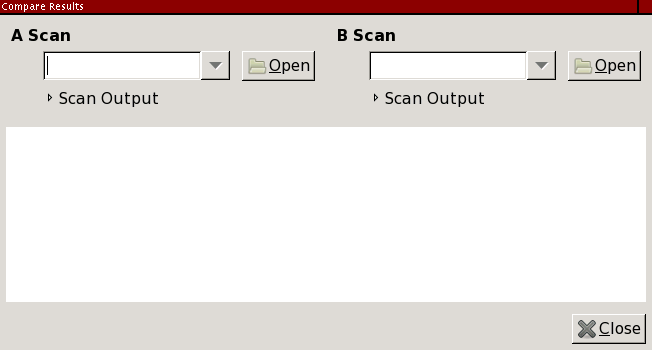
The first step in performing a comparison is selecting two scans to compare, which are called the “A scan” and the “B scan”. The combo boxes allow you to choose from open scans. Or click the “Open” buttons to get scan results from a file. To compare results from the recent scans database, you must first open those scans using the search interface (see the section called “Searching Saved Results”).
The order of the two scans matters. Comparison is always done “from” the A scan “to” the B scan, regardless of the times recorded in the files. Once the two results have been chosen the comparison begins immediately. Figure 12.17 shows a comparison between two scans of several Internet hosts, run a few days apart.
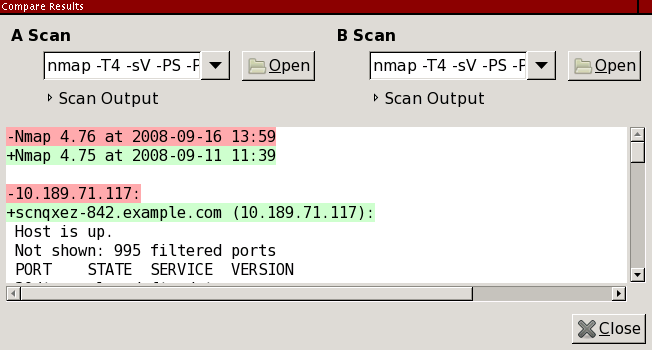
The diff output resembles Nmap's
output.
Each line is preceded by ‘ ’,
‘-’, or
‘+’, indicating that some piece of
information was unchanged, removed, or added respectively. Color
coding also indicates differences; red for deletion and green for
addition.
The engine underlying Zenmap's comparison function is Ndiff, a
non-graphical tool distributed with Nmap. Ndiff runs on any platform
that Zenmap runs on. If you have installed the
ndiff executable somewhere other than its default
location, you may have to modify the
nmap_command_path
variable in the [paths] section of
zenmap.conf
to point to it.