


Searching Saved Results
Zenmap allows you to search saved scan results files and the database of recent scans. To begin searching, select “Search Scan Results” from the “Tools” menu or use the ctrl+F keyboard shortcut. The search dialog appears as shown in Figure 12.13.
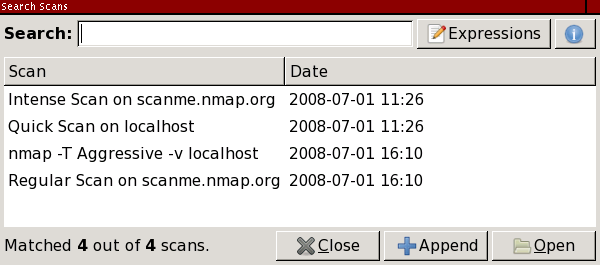
The search interface initially shows all the scans in the recent scans database (for which see the section called “The Recent Scans Database”). The reason all the scans are shown is simple—no restrictions have yet been placed on the search, so every possible result is returned.
Searches may be given in terms of several search criteria, however the
simplest search is just a keyword search. Just type a word like
scanme in the “Search” field to
find all scans that have that word as part of their output, whether as
a host name, operating system name, profile, or anything else. An
example of this is shown in
Figure 12.14.
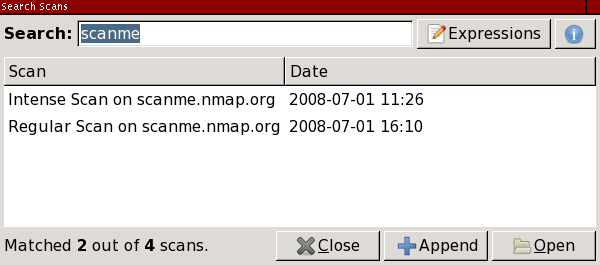
Searches happen live, as you type. When you have found the scan you want click the “Open” button or double-click on the scan name.
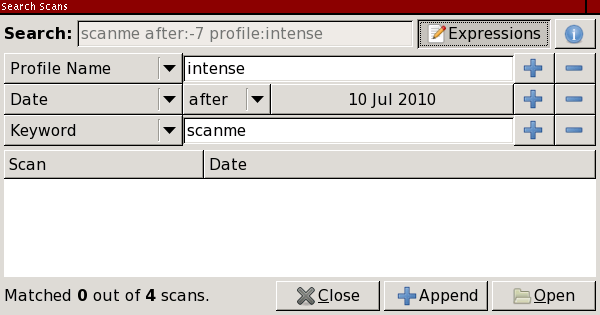
More complicated searches can be built up using the “Expressions” interface. Click the “Expressions” button and graphical representation of the current search will appear. Modify the search by selecting from the combo boxes displayed. Click “+” to add a criterion and “−” to remove one. Click the “Expressions” button again to hide the criteria (they are still present in the search string). Editing of the search text is disabled while the expressions are shown. An example of a more complicated search is shown in Figure 12.15.
Searches are and-based, meaning that all the criteria must be true for
a scan to match and appear in the results list. Most searches are
case-insensitive. (The only case-sensitive criterion is
option:.) By default only the scans in the
recent scans database
are searched. To recursively search
files in a directory, use the “Include Directory”
expression.
You will have noticed that whenever you choose a search expression a text representation of it appears in the search entry. The string in the “Search” field is what really controls the search; the “Expressions” interface is just a convenient way to set it. When you have learned what search strings correspond to what expressions, you may skip the expressions interface and just type in a search string directly.
The following is a list of all the textual search criteria recognized
by the search interface. Most criteria have a short form:
d:-5 is the same as date:-5 and
op:80 is the same as open:80.
The short form of each criterion is given in the list below.
-
<keyword> An unadorned word matches anything in a scan. For example,
apachewill match all Apache servers andlinuxwill match all Linux hosts. There is a chance of false positives when using the keyword search, like if a host happens to be namedapacheorlinux.- Port states
Every possible port state is also a search criterion. They are
open:(<ports>op:for short)closed:(<ports>cp:for short)filtered:(<ports>fp:for short)unfiltered:(<ports>ufp:for short)open|filtered:(<ports>ofp:for short)closed|filtered:(<ports>cfp:for short)Use
open:80to match scans that have a host with port 80 open. The<ports>argument may also be a comma-separated list.Additionally the
scanned:(<ports>sp:for short) criterion matches scans in which the given ports were scanned, whatever their final state.-
date:or<YYYY-MM-DD>date:-(<n>d:for short) Matches scans that occurred on the given date in
<YYYY-MM-DD>format. Or usedate:-to match scans that occurred any on the day<n><n>days ago. Usedate:-1to find scans performed yesterday.When using the
<YYYY-MM-DD>format, the date may be followed by one or more~, each of which widens the range of dates matched by one day on both sides.date:2007-12-23matches scans that occurred between 00:00 and 24:00 on December 23, 2007.date:2007-12-23~matches scans that took place between 00:00 on December 22 and 24:00 on December 24. This “fuzzy” date matching is useful when you can't remember exactly when you ran a scan.-
after:or<YYYY-MM-DD>after:-(<n>a:for short) Matches scans that occurred on or after the given date in
<YYYY-MM-DD>format. Or useafter:-to match scans that occurred within the last<n><n>days. For example,after:-7matches scans that happened in the last week.-
before:or<YYYY-MM-DD>before:-(<n>b:for short) Matches scans that occurred on or before the given date in
<YYYY-MM-DD>format. Or usebefore:-to match scans that occurred any time before<n><n>days ago.-
target:(<name>t:for short) Matches scans of any hosts with the given name. The name may be either the name specified in the scan or the reverse-DNS name of any host.
-
option:(<option>o:for short) Matches scans that used the given command-line option. Omit any leading
-or--:option:Amatches scans that used the-Aoption.This criterion matches only literally.
option:Owill not match scans that used-A, even though-Aimplies-O. Similarlyoption:sUwill not match scans that used-sSU. Option matching is case-sensitive.-
os:<string> Matches scans of hosts with the given string in any part of their OS description.
os:windowswill return scans of Microsoft Windows hosts broadly.-
service:(<string>s:for short) Matches scans of hosts with the given string in any part of the service description of any of their ports.
service:sshwill return scans of hosts running any type of SSH.-
profile:(<name>pr:for short) Matches scans that used the named profile, for example
profile:"intense scan".-
inroute:(<host>ir:for short) Matches scans where the given host appears as an intermediate router in
--tracerouteoutput.-
dir:<directory> dir:is not really a search criterion. Rather it is the way to search a directory in the filesystem in addition to those in the recent scans database. Directories are searched recursively for files ending with certain extensions,xmlonly by default. To match more file names modify thefile_extensionvariable of the[search]section ofzenmap.confaccording to the instructions in the section called “Sections ofzenmap.conf”.